How it works
- Add your words. Spelling words, sight words, word families — anything your child is learning right now.
- Pick activities. Each activity becomes its own page, so you can mix and match for homework or a word work center.
- Print. Download one PDF with every page, ready for your home or school printer.
The activities
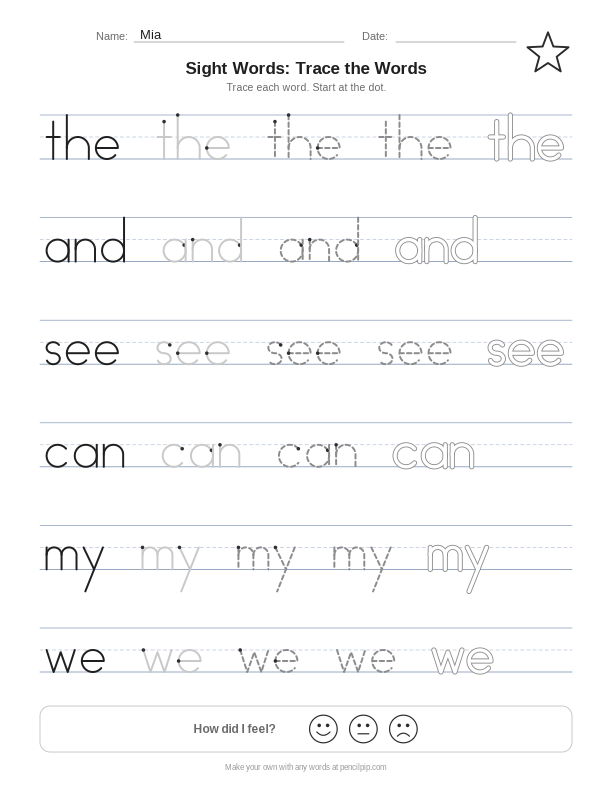
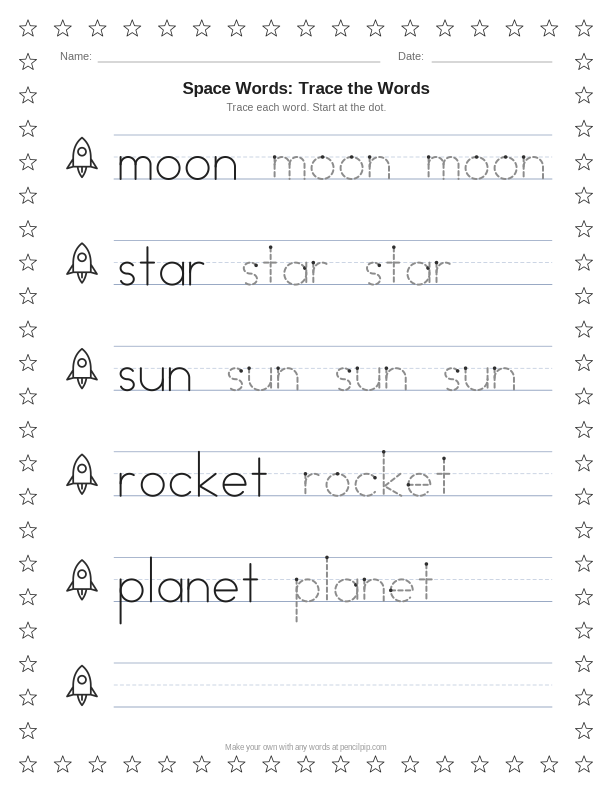
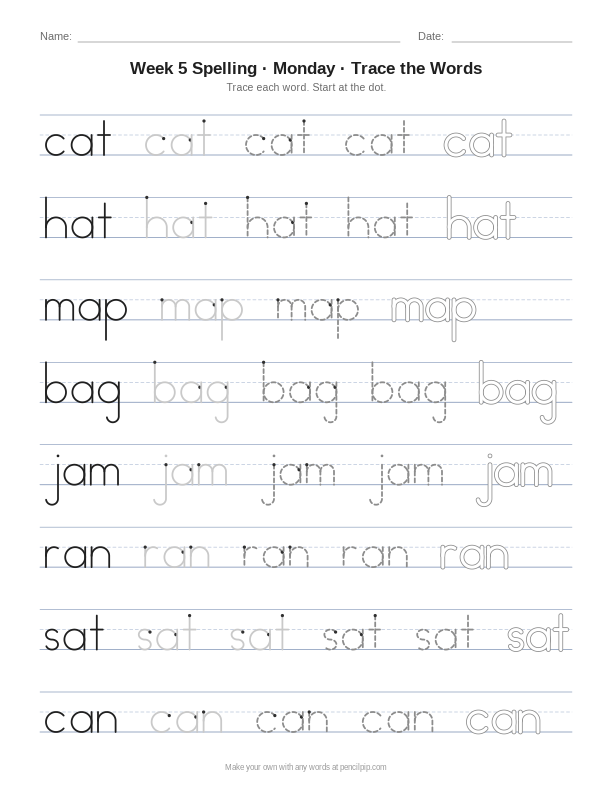
Trace
Each word starts with a solid example, followed by copies to trace. Starting dots show where every letter begins. Tap Harder and the copies get harder across the line — from light gray, to dashed, to dashed without starting dots, to hollow outline letters.
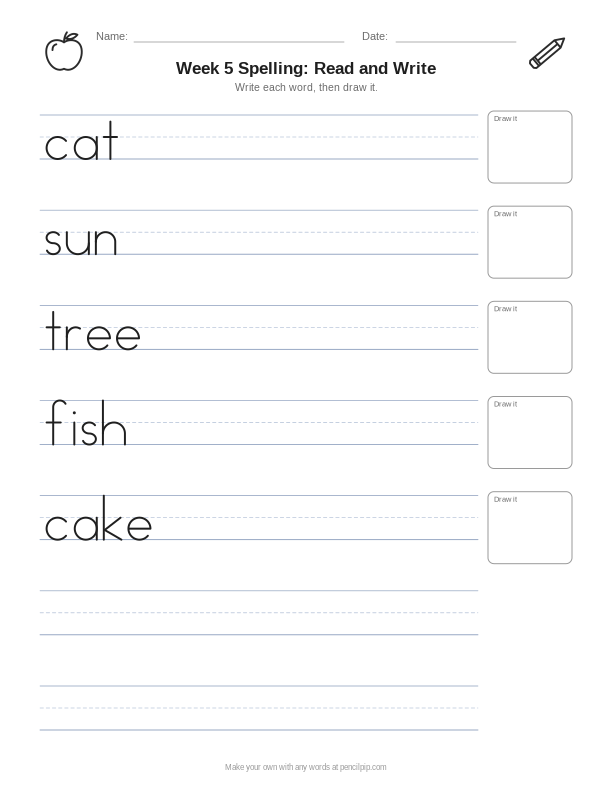
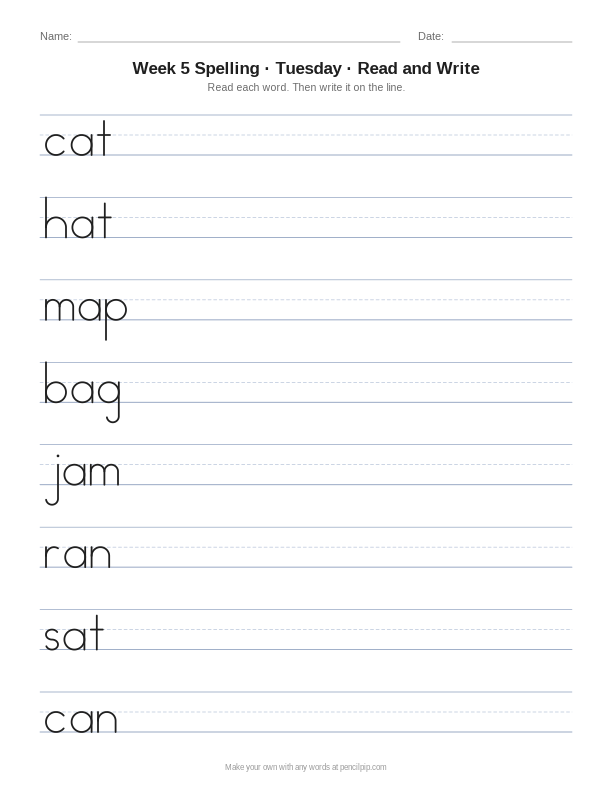
Read & write
Children read the word on the left, then write it on their own across the line. Great for spelling practice.
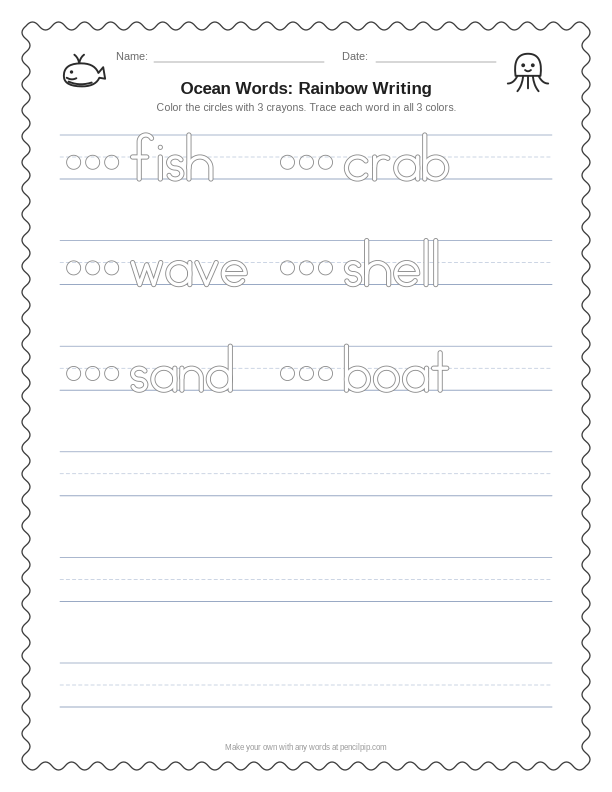
Rainbow writing
Kids color the three circles with three crayons, then trace each hollow word once in every color. The repetition helps spelling stick — and it’s more fun than writing a word five times in pencil.
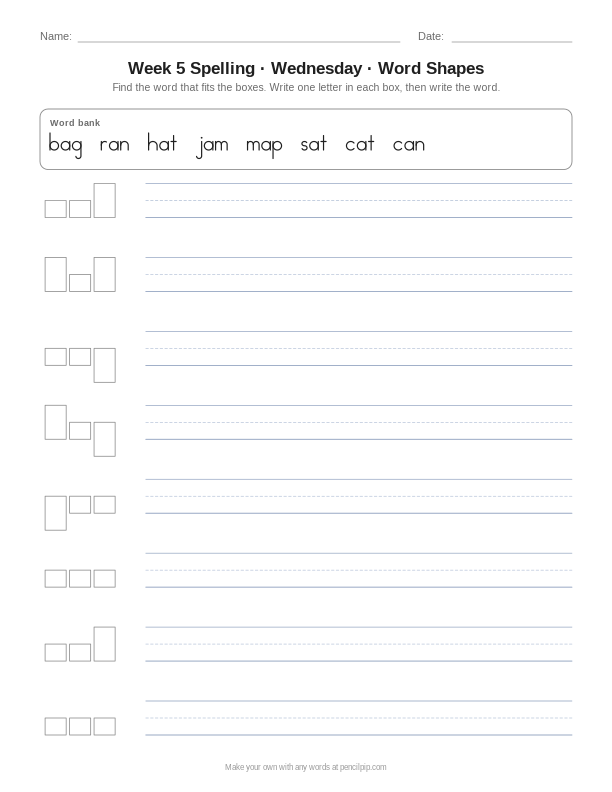
Word shapes
Every word becomes a row of boxes: tall boxes for letters like b, d and t, short boxes for letters like a and o, and boxes that hang below the line for g, p and y. Children find the word in the word bank that fits the boxes, write one letter in each box, then write the whole word on the line. It makes them look closely at every letter instead of guessing from the first one.
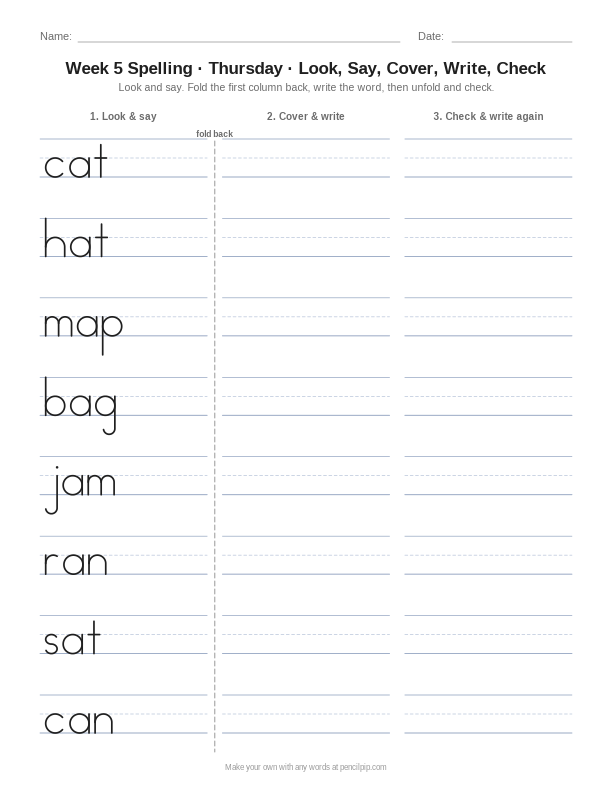
Look, say, cover, write, check
A classic way to learn a spelling by heart. Children look at the word and say it, fold the first column back along the dotted line to hide it, write it from memory, then unfold and check — and write it once more.
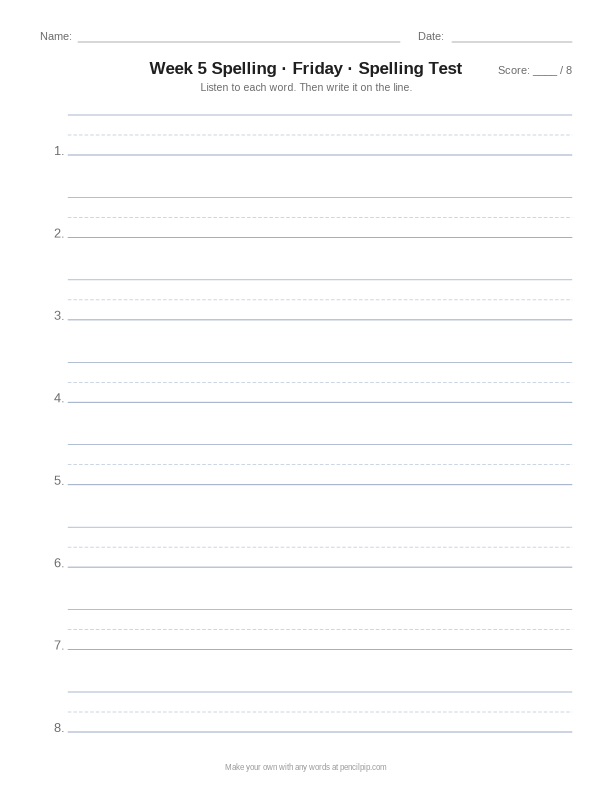
Spelling test
Numbered writing lines with no words on the page and a score at the top. Read each word aloud and let your child write it. Long lists fit in two columns.
Draw it
Turn on the drawing box in All settings → Decorate and every word on the trace and read & write pages gets its own box to illustrate it. Drawing a word is a simple way to check that a child knows what it means, not just how to spell it.
For teachers: a packet for every student
Open “For teachers: make a set for your class” and paste your student names, one per line. You’ll get a single PDF with a full packet for each child, their name already filled in at the top. Tick “Remember my class list” and it will be waiting for you next week — stored only in your browser, never uploaded to our servers.
Click Save this list to keep each week’s words under a name like “Week 5 — short a”, and open Share with families to copy a link or download a QR code for your newsletter. Families open the same words and settings and print the pages at home; student names are never part of the link.
Built-in sight word lists
Start from a classic list, then edit it however you like:
| List | Words | Typical grade |
|---|---|---|
| Dolch Pre-Primer | 40 | Preschool |
| Dolch Primer | 52 | Kindergarten |
| Dolch First Grade | 41 | 1st grade |
| Dolch Second Grade | 46 | 2nd grade |
| Dolch Third Grade | 41 | 3rd grade |
| Fry First 100 | 100 | Kindergarten–1st grade |
Frequently asked questions
Is the worksheet maker free?
Yes — make and print as many worksheets as you like, with no account and no sign-up.
Can I make spelling tracing worksheets with my own words?
Yes. Type or paste your spelling list, keep Trace ticked and print. Each word gets a solid example followed by copies to trace; tap Harder to make each line a little harder. Long lists flow onto extra pages automatically.
How do I send this week’s words to families?
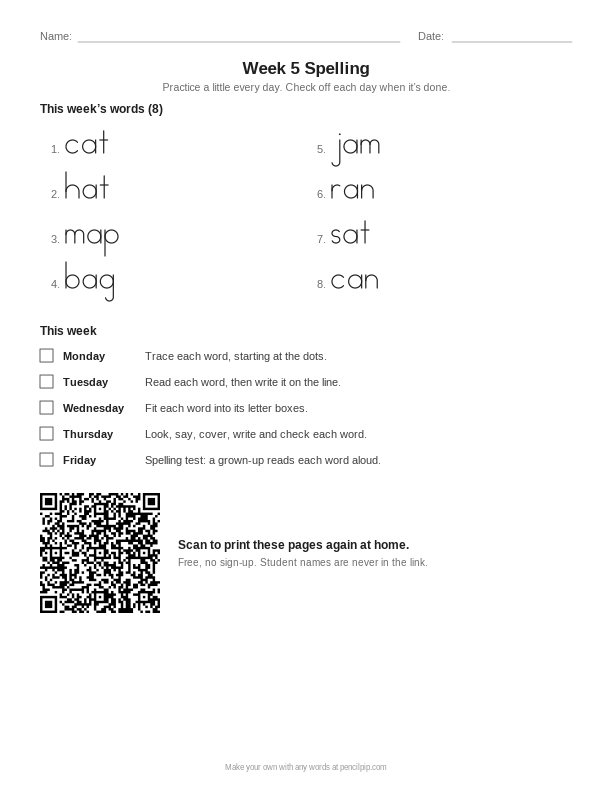
Open Share with families and copy the link, or download the QR code. The link has only the words and settings — no student names — and families can print the same pages at home. The weekly packet’s first page has the QR code printed on it too.
Where are my saved lists stored?
Only in this browser on this device — nothing is uploaded and there’s no account. To move your lists to another computer or keep a backup, open Manage my lists and export them to a file, then import that file on the other computer.
How many words can I use?
Up to 40 words at a time. Longer lists flow onto extra pages automatically.
Are my students’ names private?
Yes. Worksheets are created in your browser. Student names are never uploaded, never added to the page address, and only saved on your device if you choose “Remember my class list”.
Can I add a picture or my class photo?
Yes. In All settings → Decorate, tap the + under “Your pictures”. The picture is resized and placed on the page in your browser — names and images never leave your device, and pictures are left out of shared links.
How do I make a reusable word work page?
Print the page once and slide it into a sheet protector or laminate it. Children trace and write with a dry-erase marker, then wipe it clean for the next group at the word work center.
Can I share a worksheet with another teacher or parent?
Yes — the page address updates as you change the words and settings, so you can copy the link and send it. Student names are left out of shared links.
What handwriting style is used?
A simple ball-and-stick print similar to the manuscript style taught in many US kindergartens, with single-story a and g.